
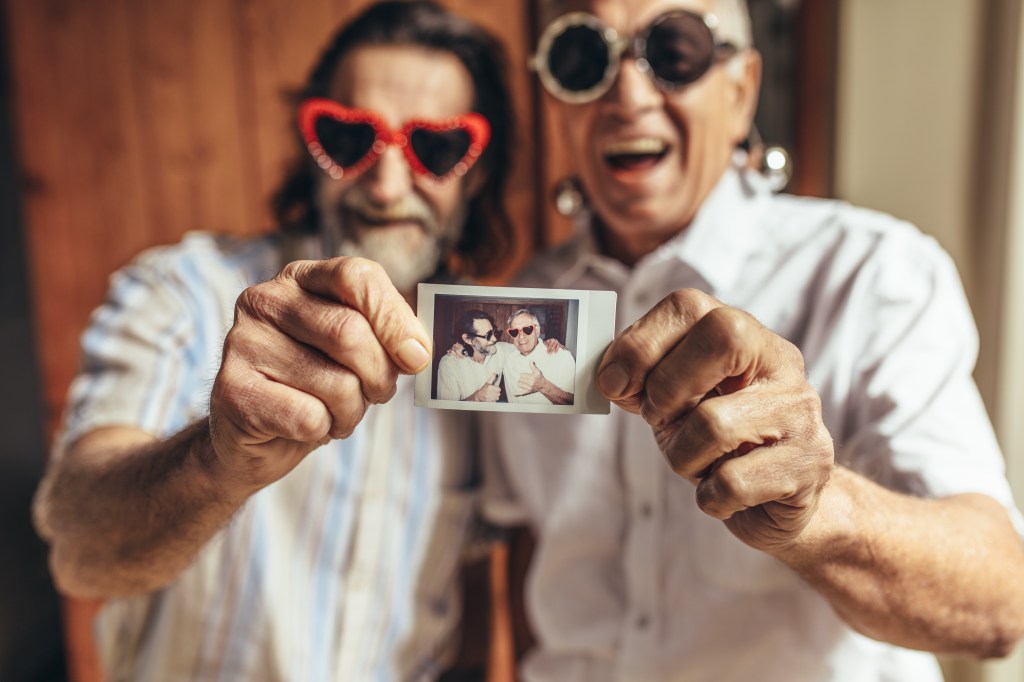
Photos are often scattered across social media, email, and cloud platforms. Instagram, Snapchat, Gmail, Dropbox, and others may hold memories you want to consolidate into one personal photo library. Whether you’re creating a backup or organizing your photo history, this guide shows you how to gather photos from multiple platforms and store them safely in one place.
Why Consolidate Your Photos?
- Prevent losing access if a platform shuts down or changes its terms.
- Make it easier to organize, search, and back up all your memories.
- Create a central library for long-term access and sharing.
Step 1: Choose Your Central Library
Before importing anything, decide where you want to store your photos:
- Apple Photos (Mac, iPhone) – Best for Apple users.
- Google Photos – Cross-platform and searchable.
- External Hard Drive or SSD – Great for offline, long-term storage.
- Dropbox or OneDrive – Cloud storage with flexible access.
Create folders or albums ahead of time by year, event, or category to make the import process smoother.
Step 2: Download Photos from Common Platforms
- Go to Settings > Your Activity > Download Your Information (on mobile) or visit Instagram Data Download.
- Request a full download—Instagram will email a link.
- Unzip the folder and locate the “media” subfolder. These files can be sorted and added to your photo library.
Snapchat
- In the app, go to Settings > My Data.
- Log in to your account and request your data.
- You’ll receive a download link via email.
- Note: Memories saved to your phone can be found in the Photos app if you’ve enabled auto-saving.
Gmail
- Search your inbox with filters like filename:jpg or has:attachment to locate photo emails.
- Manually download each attachment or use Google Takeout to export your Gmail data.
- Save downloaded images into your preferred photo folder.
Dropbox
- Select photos or folders you want to download.
- Click the download icon or choose Download > Direct download from the menu.
- Move files into your chosen photo library and rename if needed.
Google Photos
- Use Google Takeout to export all or select albums.
- Choose JSON or no metadata options depending on your use.
- Download, unzip, and import photos to your new location.
- Go to Settings & Privacy > Settings > Your Facebook Information > Download Your Information.
- Choose “Photos and Videos” only.
- Download and import them into your new photo system.
- If photos are saved to your phone automatically, back them up from the Photos or Gallery app.
- Otherwise, open chats > tap on Media > select and save desired images.
Step 3: Organize & Import
Once your downloads are complete:
- Sort by date or event before importing into your central library.
- Rename files for clarity if original names are vague (e.g., IMG_001.jpg).
- Batch edit dates or metadata if needed (Apple Photos and Google Photos allow this).
Step 4: Back Up Your Photo Library
After organizing:
- Back up to an external drive and/or cloud storage.
- Consider setting up auto-backup going forward to avoid repeating this process.
Bringing All Your Photos Home
Scattered memories are easy to overlook. By downloading and consolidating your photos from platforms like Instagram, Gmail, Dropbox, and others, you can build a secure, organized photo library that grows with you. Take the time to gather your digital memories—you’ll thank yourself later.
This post is part of the Digital Organization Series, where I walk you through everything you need to know about scanning, organizing, and managing your digital files. Whether you’re just starting or looking to refine your system, you can explore the full series here: DIY Series.
 Lalistyle Studios